Getting Started
How to Scan Your First APK
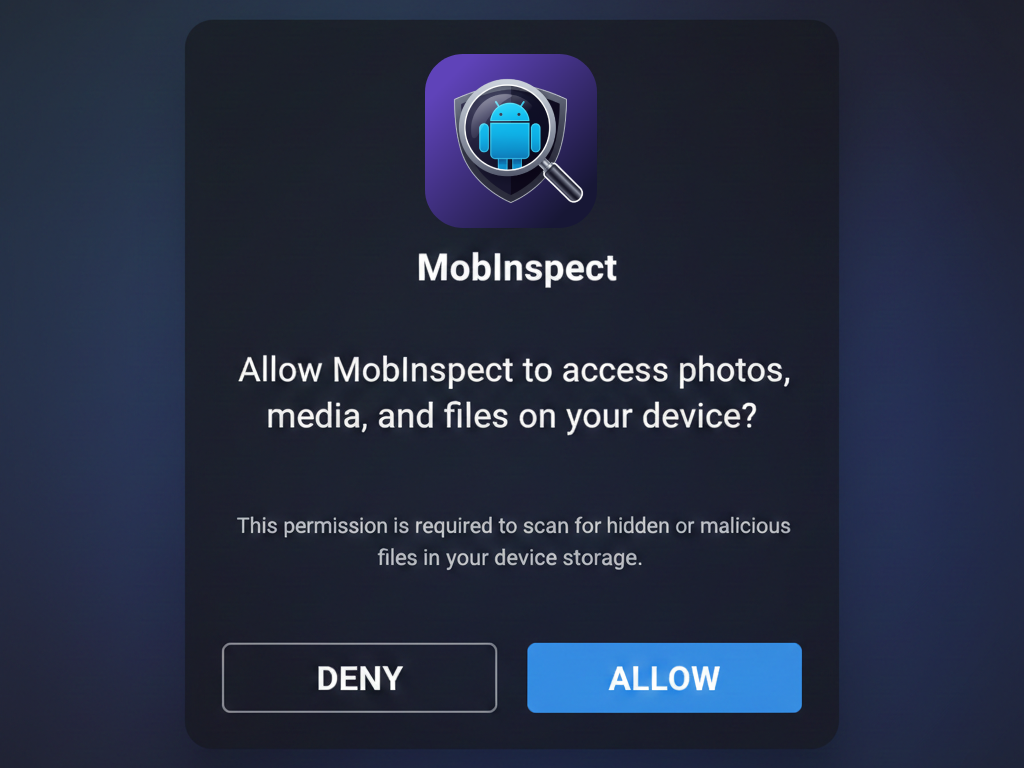
Step 1: Grant Permissions
When you first launch MobInspect, you'll need to grant the following permissions:
- Storage Access: Required to read APK files on your device
- Notification Permission: Optional, but recommended for scan completion alerts
Step 2: Select an APK File
Tap the scan button on the home screen and choose how you want to select an APK:
- Browse Files: Navigate to an APK file stored on your device
- Installed Apps: Select from apps already installed on your device
Step 3: Start the Scan
Once you've selected an APK, tap "Start Scan" to begin the analysis. The scan progress will show:
- Current analysis stage (Permissions, Code Analysis, AI Detection)
- Progress percentage
- Estimated time remaining
Step 4: Review Results
After the scan completes, you'll see a comprehensive security report including:
- Risk Score: Overall security rating from 0-100
- Threat Summary: Any detected malware or suspicious behaviors
- Permission Analysis: Breakdown of app permissions and their risks
- AI Detection Results: Scores from all three detection layers
- Recommendations: Actionable suggestions based on findings
Understanding Scan Results
Risk Score Interpretation
- 0-30 (Low Risk): App appears safe. No significant threats detected.
- 31-60 (Medium Risk): Some concerns found. Review the detailed findings.
- 61-80 (High Risk): Significant issues detected. Exercise caution.
- 81-100 (Critical Risk): Severe threats found. Do not install this app.
AI Detection Layers
Our 3-layer detection system provides individual scores:
- Machine Learning (ML) Score: Pattern-based detection using trained neural networks
- Rule-Based Score: Matches against known malware signatures and patterns
- Heuristic Score: Behavioral analysis for unknown/zero-day threats
Permission Risk Levels
- Safe: Standard permissions with minimal privacy impact
- Moderate: Permissions that could affect privacy if misused
- Dangerous: High-risk permissions that require careful consideration
Managing Scan Reports
Saving Reports
After a scan completes, you can save the report for future reference:
- Tap the "Save Report" button on the results screen
- Reports are stored locally on your device
- Access saved reports from the "Reports" tab in the app
Exporting & Sharing Reports
Export and share scan results in multiple formats:
- PDF: Professional, human-readable security report
- JSON: Machine-readable structured data for integration
- SARIF: SARIF v2.1.0 for CI/CD tools (GitHub, Azure DevOps)
- CSV: Spreadsheet-compatible findings list
- Combined exports available: PDF+JSON, PDF+SARIF, SARIF+CSV, CSV+JSON
- Share via messaging apps, email, or save to files
Deleting Reports
Remove reports you no longer need:
- Swipe left on a report in the list to delete
- Or use the delete button in report details
- Deleted reports cannot be recovered
Security Tools
MobInspect includes several advanced security tools accessible from Settings > Security Tools:
Full Device Security Scan
Batch-scan all installed apps on your device in one tap:
- Verifies install sources (Google Play, Samsung, Amazon, ADB, Unknown)
- Detects sideloaded apps from unknown sources
- Assigns risk scores and categories to every app
- Shows a summary with flagged apps and device-level security grade
- Tap any flagged app to run a detailed scan or extract its APK
Trusted Apps Vault
Verify app integrity with SHA-256 checksum verification:
- After scanning an app, tap "Trust This Version" to save its checksum
- Use "Verify All" to check all trusted apps against current installed versions
- Get alerted instantly if an app has been modified or re-signed
- Re-trust or remove trust for individual apps
Hidden Background Runners
Detect apps running silently without a visible launcher icon:
- Identifies background services, boot receivers, and invisible processes
- Distinguishes legitimate services (keyboards, accessibility) from suspicious ones
- Useful for detecting stalkerware and spyware
Safe APK Installer
Scan APK and XAPK files for threats before installing:
- Select an APK or XAPK (split APK bundle) file
- Get a quick risk score with clear warnings
- Review permissions and threat indicators before installing
- Supports both standard APK and split XAPK formats
App Source Categories
See where every installed app came from:
- Apps grouped by install source (Google Play, Samsung Store, Amazon, ADB, Unknown, System)
- Highlights apps from unknown or unverified sources
- Tap any app to add it for a detailed security scan
Language & Theme Settings
Changing Language
MobInspect supports 7 languages: English, Bengali, Hindi, French, Japanese, Arabic, and Spanish.
- Choose your language on first launch in the Language Selection screen
- Change anytime: Settings > Appearance > Language
- Arabic includes full right-to-left (RTL) layout support
Theme Selection
Choose between System (auto), Light, or Dark themes in Settings > Appearance > Theme.
MASVS Compliance & Scoring
OWASP MASVS Compliance
Each scan includes an assessment against the OWASP Mobile Application Security Verification Standard v2.0:
- L1 (Standard): Basic security requirements every app should meet
- L2 (Defense-in-depth): Advanced protections for high-security apps
Scoring Matrix
Understand exactly how risk scores are calculated by visiting Settings > Scoring Matrix:
- Severity weights for each finding type
- Combination multipliers for compounding risks
- Grade classification thresholds (A through F)
- Worked example showing the calculation step by step